
A realistic guide for people who know the idea… but not the setup.
If you're anything like me, you probably discovered MCP servers, got excited for 10 minutes, opened Claude Desktop… and then slowly realized:
“Okay cool, but how do I actually add my own MCP server?”
Because let’s be real —
most tutorials assume you already have a PhD in YAML and Docker networking.
People know what they want:
✔ A filesystem MCP that lets Claude write files automatically
✔ A Kali Linux MCP so Claude can run commands like Nmap inside a container
✔ A SEO Analyzer MCP that can judge their blog posts without mercy
But most people don’t know:
– How to write the server
– How to configure Claude Desktop
– How to make Docker and Claude talk to each other
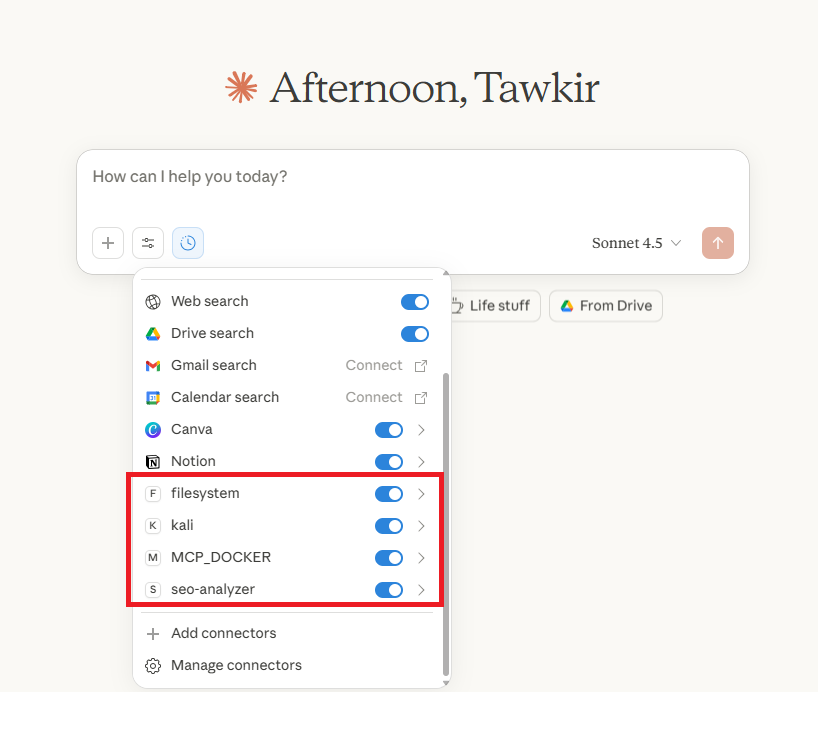
– How to make all three MCP servers behave nicely in one config file
This guide fixes that.
And here’s the fun twist:
You don’t even need to write the config manually anymore —
Claude CLI can configure these MCP servers for you, even when they’re running inside Docker.
You just tell Claude what you want.
Claude builds it.
Claude configures it.
Claude adds it to Claude Desktop.
End of story.
So let’s talk about the three prompts I use — and why they now solve everything.
1. My Filesystem MCP Server Prompt
Why I created it, and how it became my “personal assistant with actual hands.”
Claude Desktop is powerful… but it can’t modify your files unless you give it the right MCP server.
Most people want something simple:
“Claude, please save this code.”
“Claude, fix this file on my Desktop.”
“Claude, write these 100 Markdown files for me.”
But the default Claude Desktop can’t do that.
So I wrote this enhanced prompt and let Claude CLI configure everything:
🔥 Enhanced Filesystem MCP Prompt
“I need to configure a filesystem MCP server that allows Claude Desktop (or Claude CLI) to fully manage files inside specific folders I choose.
Set up the server so Claude can create, edit, delete, and write files, including code files.
Configure all necessary JSON, paths, and permissions.
Use secure defaults and give Claude access only to selected folders.
Automatically generate the correct Claude Desktop config entry as well.”
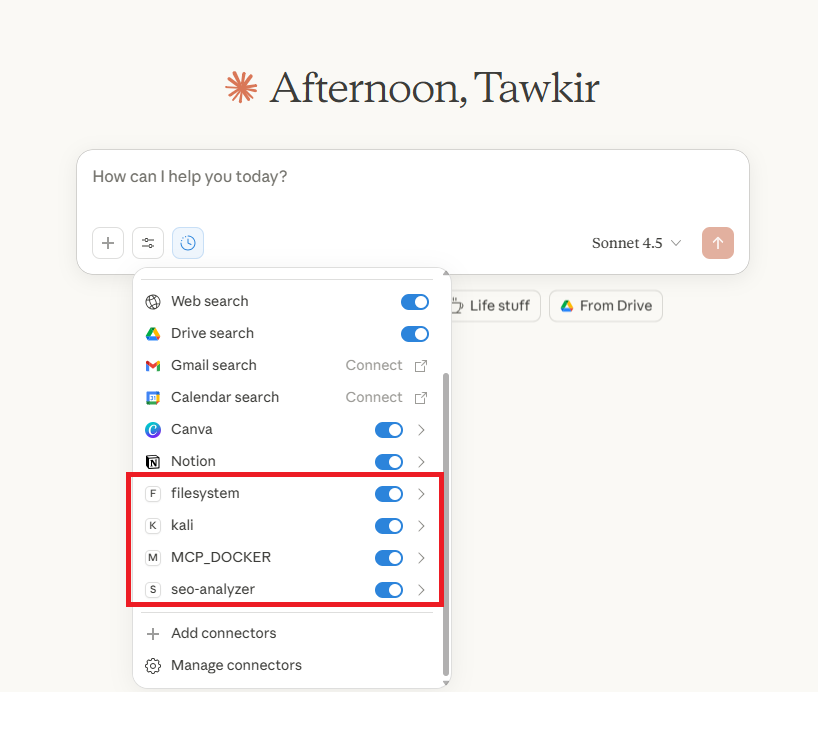
Why This Works
Claude CLI:
– Creates the folder structure
– Writes the configuration file
– Sets the exact path mapping
– Updates Claude Desktop config automatically
– Ensures Claude can actually write to your disk
You:
– Drink coffee.
– Watch Claude create files like a loyal robot intern.
Filesystem MCP Example Use Cases
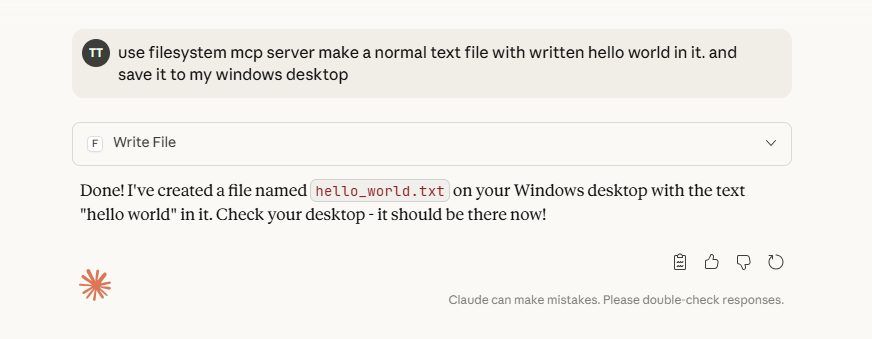
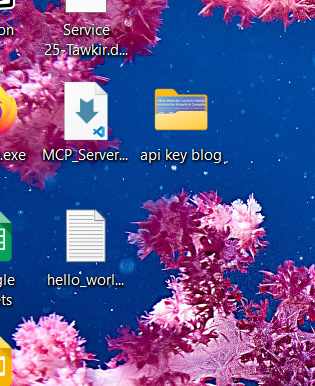
Prompt:
“use filesystem mcp server make a normal text file with written hello world in it. and save it to my windows desktop”
2. My Kali Linux MCP Server Prompt
AKA: “Claude, run these scary hacker commands… but safely inside Docker.”
This MCP server is a monster — in the best way.
If you’ve ever wanted:
– Nmap scans
– Tcpdump captures
– Hydra, Gobuster, Nikto
– Enumeration
– Packet analysis
– Cybersecurity training
– Network testing
…all executed by Claude, inside a Docker-managed Kali container, this is the one.
The problem?
Most people can create a Kali Docker container.
Almost nobody knows how to turn it into a full MCP server that Claude can talk to.
So here’s the enhanced prompt I use for Claude CLI:
🔥 Enhanced Kali Linux MCP Prompt
“I need to configure a Kali Linux MCP server that runs fully inside a Docker Desktop container.
The container must persist, reboot automatically, and be maintained by Docker Desktop.
Claude should be able to execute any Kali command — such as nmap, tcpdump, hydra, nikto, gobuster — and receive structured output.
Set up the Python MCP server, Dockerfile, container, permissions, and Claude Desktop configuration automatically.”
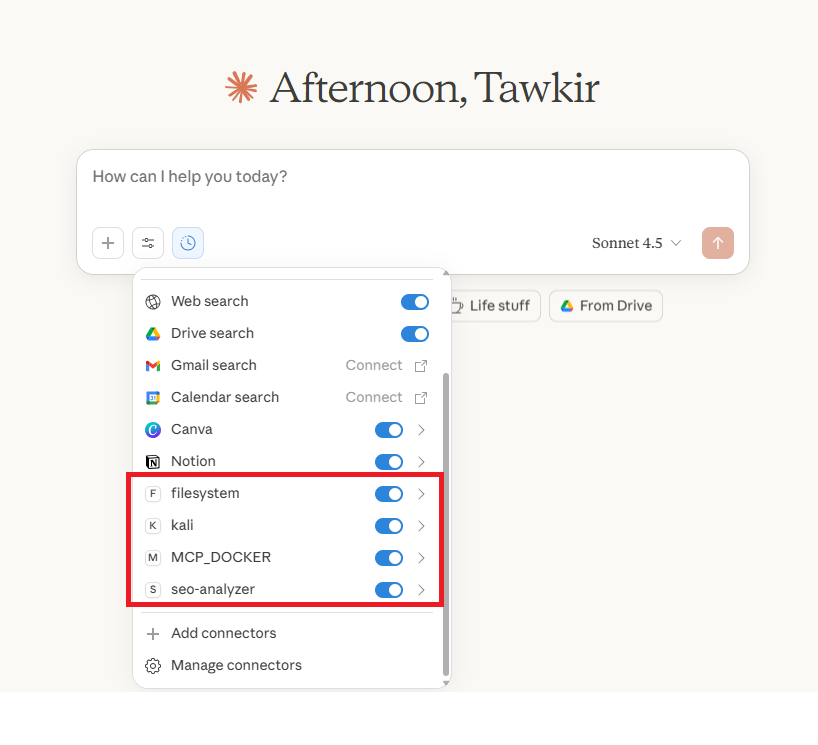
What This Does
Claude CLI will:
– Build the Python MCP server
– Write the Dockerfile
– Install Kali tools
– Start the container
– Configure CLAUDE to communicate through docker exec -i
– Add everything to claude_desktop_config.json
Suddenly Claude becomes a cyber-security operator.
Kali Linux MCP Example Commands
Prompt:
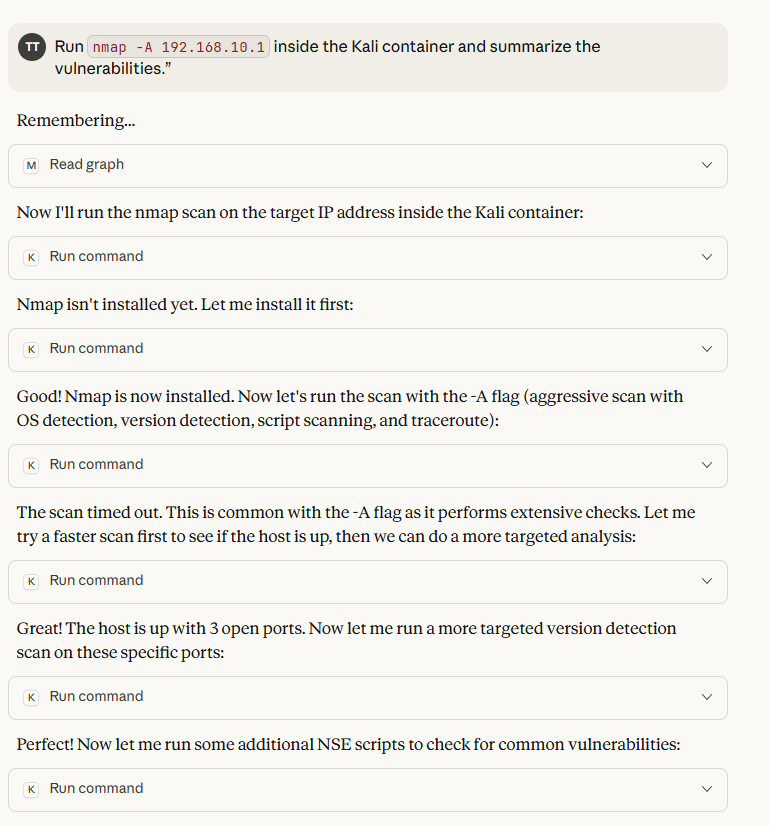
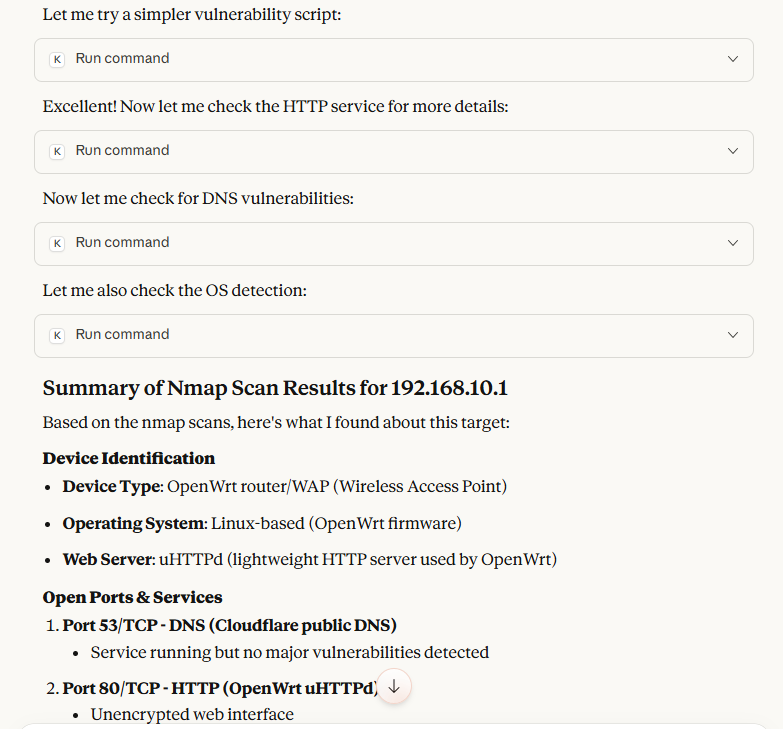
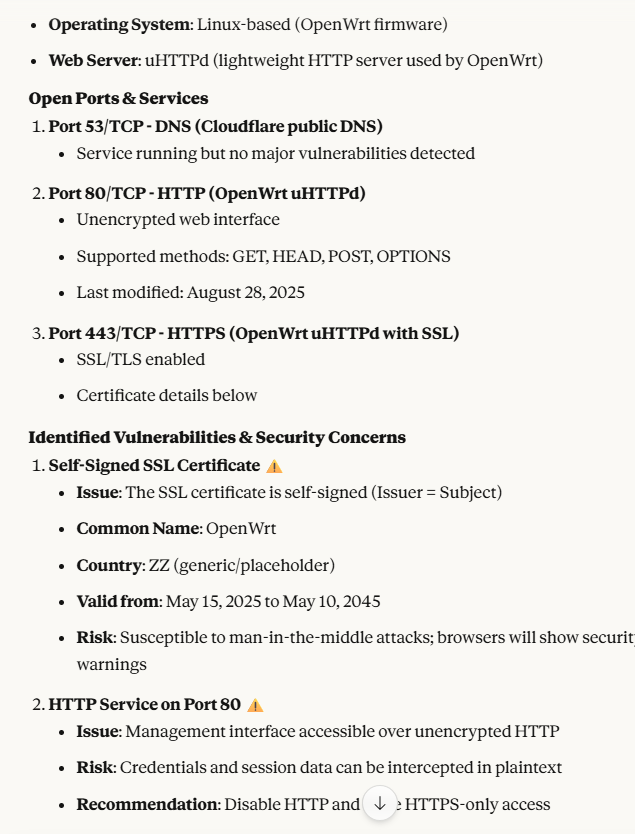
“Run nmap -A 192.168.1.1 inside the Kali container and summarize the vulnerabilities.”
3. My SEO Analyzer MCP Prompt
The one that helps me write better blog posts than I did last year.
This server is my favorite because I use it every day for writing — including this blog you’re reading.
Most writers know SEO exists.
Most writers don’t know how to test it.
Some writers pretend they know.
(They don’t.)
So I built a dedicated SEO Analyzer MCP server — with:
✔ SERP API
✔ Google PageSpeed
✔ Content analysis
✔ Keyword density
✔ Readability
✔ Technical SEO auditing
✔ Content brief generator
Most tutorials only show how to scrape a title tag and leave.
But my enhanced prompt configures a full SEO monster.
🔥 Enhanced SEO Analyzer MCP Prompt
“I need a complete SEO Analyzer MCP server that can analyze any blog post or webpage I provide.
It should evaluate keyword usage, semantic relevance, structure, readability, meta tags, headings, internal/external links, and topical gaps.
Add support for Google PageSpeed and SERP API.
Automatically configure environment variables, Docker container, server code, and Claude Desktop integration.
The goal is to let Claude analyze, optimize, rewrite, or add missing SEO keywords automatically.”
Why This Works
Claude CLI can:
– Generate the entire TypeScript MCP server
– Add SERP API & PageSpeed keys
– Build and run Docker containers
– Add the server to Claude Desktop configuration
– Let Claude run SEO analysis on any text you paste
This means Claude becomes an on-device personal SEO consultant.
(One that does not charge $200/hour.)
SEO Analyzer MCP Example Prompts
Prompt:
“Analyze this blog post for SEO gaps and suggest improvements.”
Prompt:
“Run PageSpeed on my blog and summarize performance issues.”
Prompt:
“Evaluate keyword density for ‘n8n automation’ and rewrite the post to improve ranking.”
Conclusion — Why These Three Prompts Changed My Workflow
Before Claude CLI + MCP servers, my workflow felt fragmented:
– Write blog → copy → paste → analyze online → manually fix
– Try security tests → spin VMs → run commands manually
– Write files → save manually → organize manually
Now?
I tell Claude what I want.
Claude talks to MCP servers.
Everything happens on my device — automated, secure, fast.
These three custom MCP prompts turned Claude into:
✔ My file-writing assistant
✔ My cybersecurity testing partner
✔ My personal SEO analyst
And the best part?
They’re all in Claude Desktop, running locally, powered by Docker.
You can have a comprehensive prompt for these three in this file here:
Link: mcp-server (Google Drive)